
The Samsung TV displays the Wi-Fi network name and the connection symbol appears, but none of the apps will load. The difference between “connected to Wi-Fi” and “connected to the Internet” is a real technical distinction. The router has assigned an address to the TV, but the connection between the router and online servers has been interrupted. Before changing any settings, a quick test can help you determine whether the problem is with the TV or your home network.
Mobile hotspot test: isolate the problem in two minutes
Turn on the hotspot on your phone (Android or iPhone). Connect the Samsung TV to this mobile hotspot. If an app such as YouTube or Netflix opens normally, the TV’s Wi-Fi is working.
The problem is then somewhere between your router and the Internet, or in the way the router handles the TV’s connection. If the TV works on a mobile hotspot but not on your router, the problem is with your home network.
This result is valuable. If the problem persists when using your router, report it to your Internet service provider or Samsung Support, and describe exactly what you observed: the connection works through a mobile hotspot but fails on the fixed network. This immediately points the diagnosis toward the router, MAC filtering, or a bandwidth issue rather than a hardware fault with the TV.
Make a note of the mobile network name and the time of the test. This gives your provider’s technician a concrete detail to work with, instead of having you repeat the basic troubleshooting steps.
Samsung TV network settings: where to find them on different models
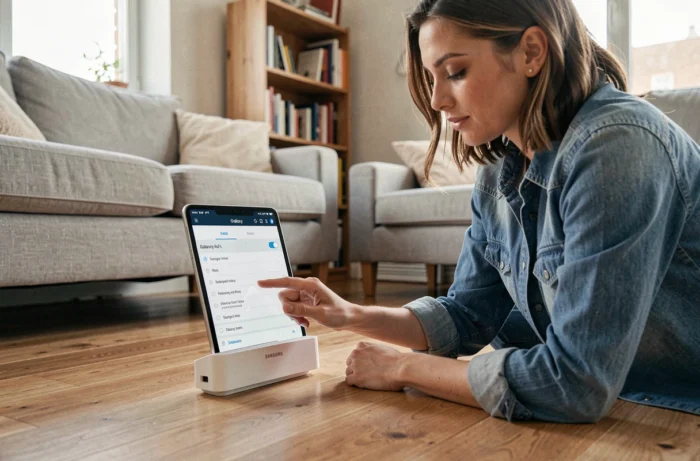
The path to the network settings varies by model. On Samsung TVs released in 2020 or 2021, the options are often under Settings, then General, then Network. On newer models, go to Connection, then Network. If you can’t find a menu on your screen, check the manufacturing year on the label on the back of the TV.
Once you’re in the right menu, select Network Status. This screen displays two separate details: the connection between the TV and the router, and the connection between the router and the Internet. A problem with the first link points to an incorrect password or weak Wi-Fi signal. A problem with the second confirms an issue with the router or Internet provider.
When a Samsung connected without internet shows a valid router connection but no Internet access, the most common cause is that the router hasn’t been restarted in a long time, or that filtering is enabled on the router.
Samsung TV network reset: don’t confuse it with a factory reset
You may have read that a “reset” can fix the problem. Be careful: two very different options have similar names.
- Network reset: This only clears the connection settings (saved Wi-Fi network, DNS, IP). The TV will ask you to enter the network password again, just like the first time. Your apps and preferences remain unchanged.
- Factory reset: This restores the entire TV to its original settings. Accounts, downloaded apps, picture preferences—everything is erased. Use this option only as a last resort, after all other settings have failed.
- Simple restart (turn the TV off, unplug it for thirty seconds, then plug it back in): often enough to clear the network cache without changing any settings. Try this first.
Always start with a restart, then try a network reset. Save the factory reset for when nothing else has worked.
Manual DNS on a Samsung TV: when and why to set it up
Changing the DNS server is a common recommendation. In practice, this only helps in one specific situation: the TV connects to the network, Network Status shows a valid router connection, but the DNS test fails or apps can’t resolve addresses.
If several devices in your home have the same problem (phone, computer, tablet), DNS is probably not the cause on the TV alone. In that case, it’s better to restart the router or contact your Internet service provider.
However, if only the Samsung TV is having trouble, you can try setting a manual DNS server. In the network settings, switch the IP configuration to manual mode. Enter a public DNS server in the designated field. Confirm, then run the Network Status test again.
Contacting Samsung Support or your Internet provider: what to tell them
Before you call, gather three details to speed up the diagnosis:
- The result of the mobile hotspot test (connection succeeded or failed).
- The Network Status screen: TV-to-router connection OK or not OK, router-to-Internet connection OK or not OK.
- The exact TV model and manufacturing year (shown under Settings, then About This TV, or on the label on the back).
If the mobile hotspot works but your router doesn’t, contact your Internet provider. If no network works (neither your router nor the mobile hotspot), contact Samsung Support instead, as the problem may be with the TV’s Wi-Fi module.
Sharing these results at the start of the call helps you avoid the standard troubleshooting steps technicians routinely ask you to perform. You’ll save time and get an answer that’s better suited to your situation sooner, whether that means replacing the router, updating the TV’s firmware, or arranging an in-home service visit.